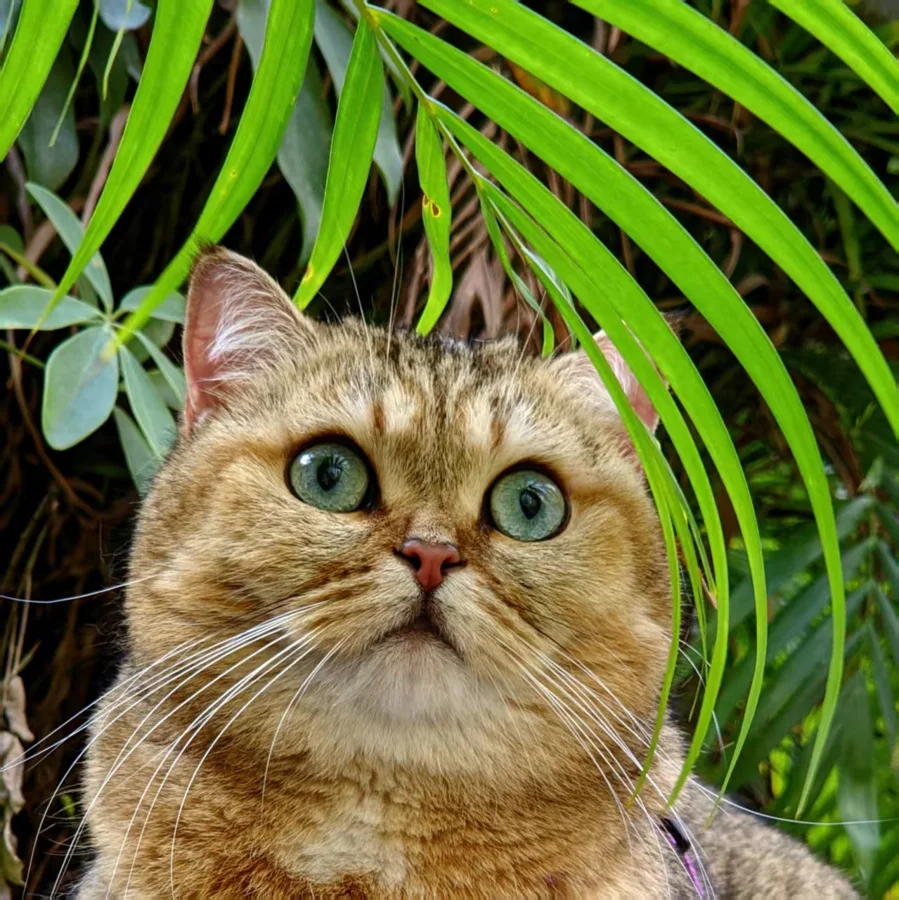
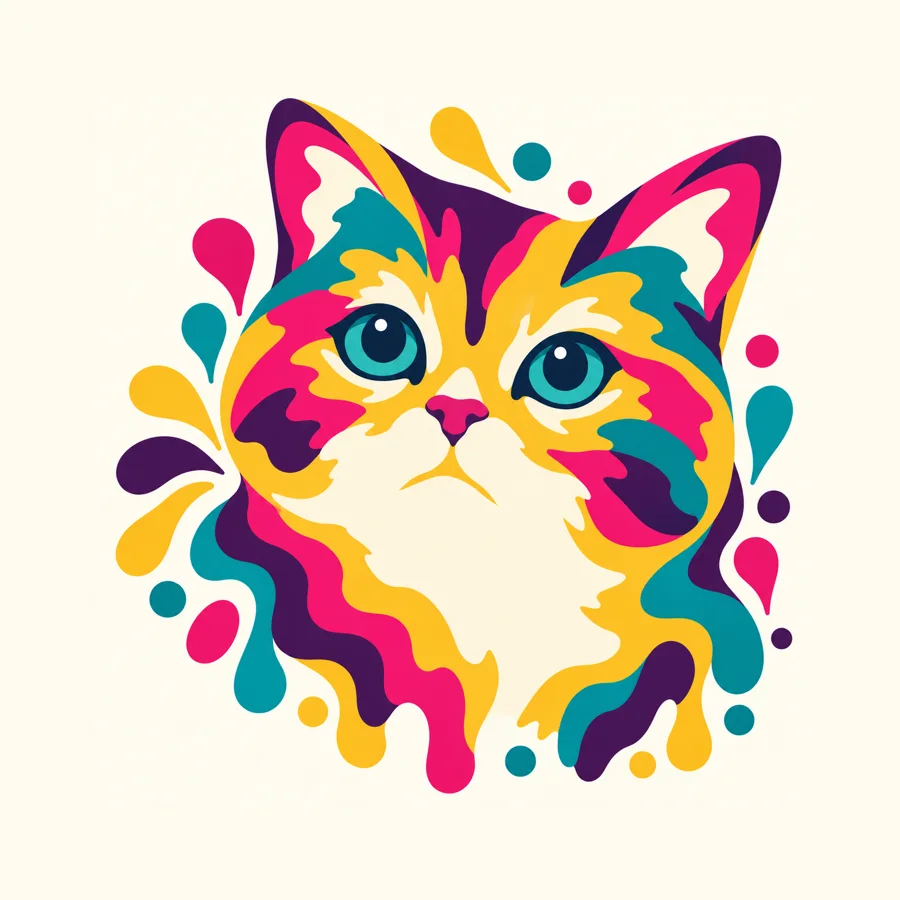
Our example uses a photo of our own cat in place of a customer's photo. The layers and the 3D preview below are what KerfPress made from it.
1. Ask for the right photo
The photo the customer sends decides most of the result. Ask for one pet, close up, with sharp eyes and soft, even light, and ask whether they took the photo themselves.
- One pet, close up. The head and ears should fill most of the picture.
- Sharp eyes. In paper, the eyes and the outline of the head are what make the portrait look like that pet. Fur texture does not survive.
- Soft, even light. Hard shadows across the face become shapes of their own.
- Permission. A photo taken by a professional photographer belongs to the photographer, so the customer needs their permission before you use it.
2. Redraw the photo in flat colors
Layering works on flat areas of color, and a photo of fur holds hundreds of tones. Redraw the photo with an image model first, keeping the pose, the eyes and the shape of the ears.
The Color splash pet portrait style has a prompt written for this, and the photo guide explains what to look for in the result. KerfPress does not send photos to an image model. If you use one with a customer's photo, tell the customer first.
3. Generate the layers
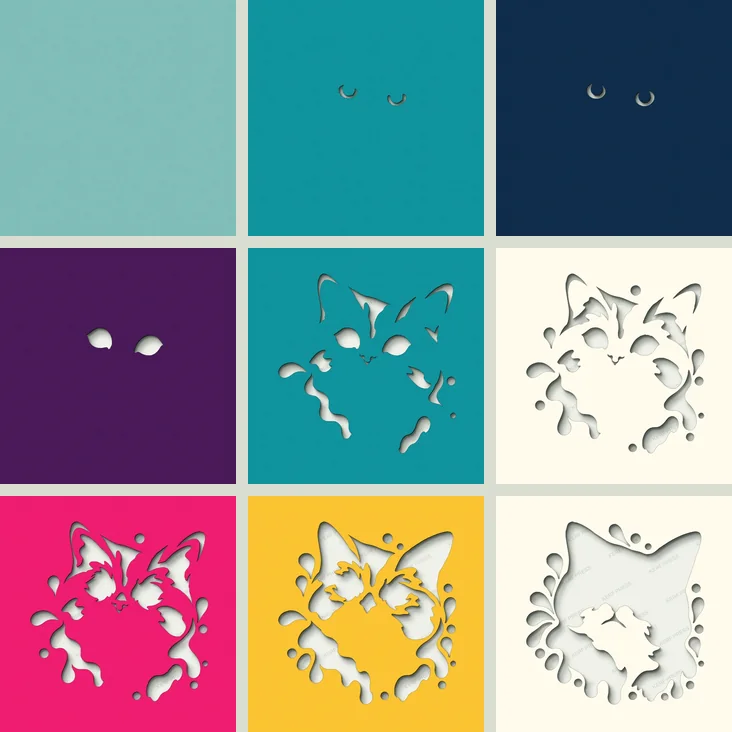
Open the redrawn image in the generator and set the finished width to the size your frame holds. For this portrait we used the Color splash settings: 8 colors, 200 mm wide, no border, light colors in front.
The generator found seven colors in the artwork and built nine sheets. It added three sheets in repeated colors to hold pieces that would otherwise float, and dropped one that added nothing.
4. Check the sheets and make changes
Before the customer sees anything, check what will be hard to cut. The generator reports islands: pieces of paper that touch no edge and would fall out when cut. This portrait had none left. When a design has some, open it in the editor and connect them with bridges, or turn small pieces into decals.
The editor is also where customer requests go: another color for one sheet, a sheet removed, a shape smoothed. See Islands and bridges for the details.
5. Show the customer before you cut
Open the 3D preview. Set the gap between layers and the light, choose a frame color, then take a screenshot and send it for approval. Changing a color costs nothing at this point. After the cut it costs card and time.
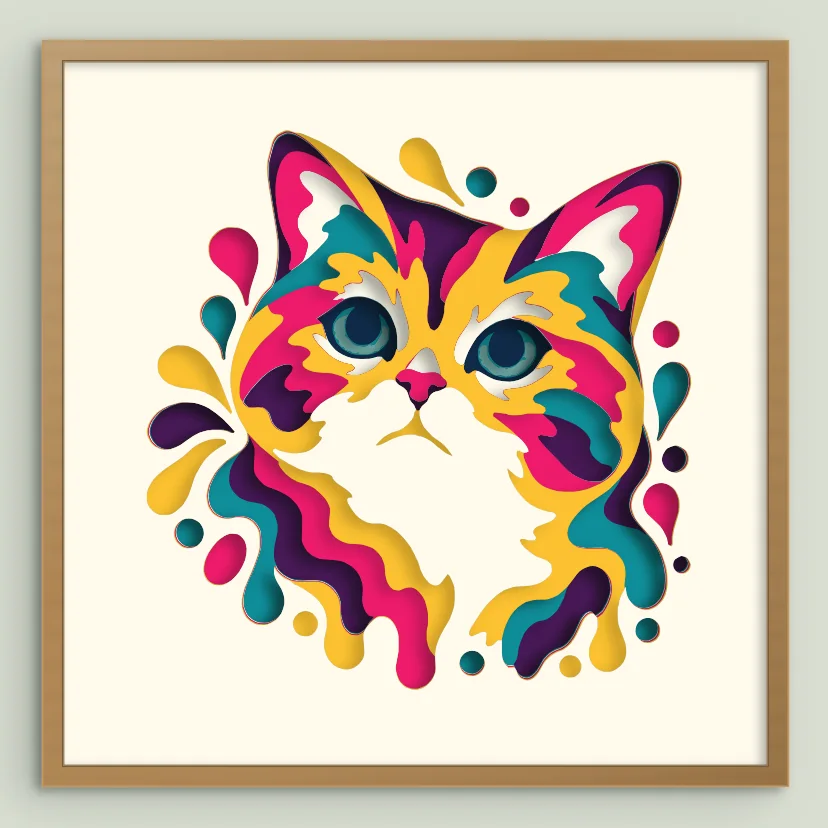
Previewing is free and does not use a download.
6. Deliver
A custom order ends in one of two ways: a finished piece you ship, or a file the customer cuts.
- A finished piece. Download SVG.zip for your cutting machine, or PNG.zip to print and cut by hand. Cut, assemble from the highest layer number down, frame it and ship it.
- A file. Send the customer SVG.zip. It holds the multilayer SVG, a cut file for every layer, outlines for printing and cutting by hand, and an assembly guide with the color list. A customer using the free Basic Edition of Silhouette Studio needs PNG.zip instead, because that edition does not open SVG files.
Downloading uses your free allowance, a single download or a subscription. See Pricing. For cutting and assembly, see How to make a shadow box.
Can I sell what I make?
Commercial use allowed on every plan. You can sell the files you create with KerfPress, or physical products made from them, as long as you have the necessary rights to your source images and content. KerfPress's own designs, the free templates, design library and paper lace, are for personal use, and with Pro you can also sell the physical items you cut from them. The full wording is in section 5 of the Terms of Service.