Layering works on flat areas of color. Line art, silhouettes and flat illustrations are ready to use. A photograph carries gradients and hundreds of tones, so it needs flattening first. Redraw it as a few solid color areas with an image model, using our prompt.

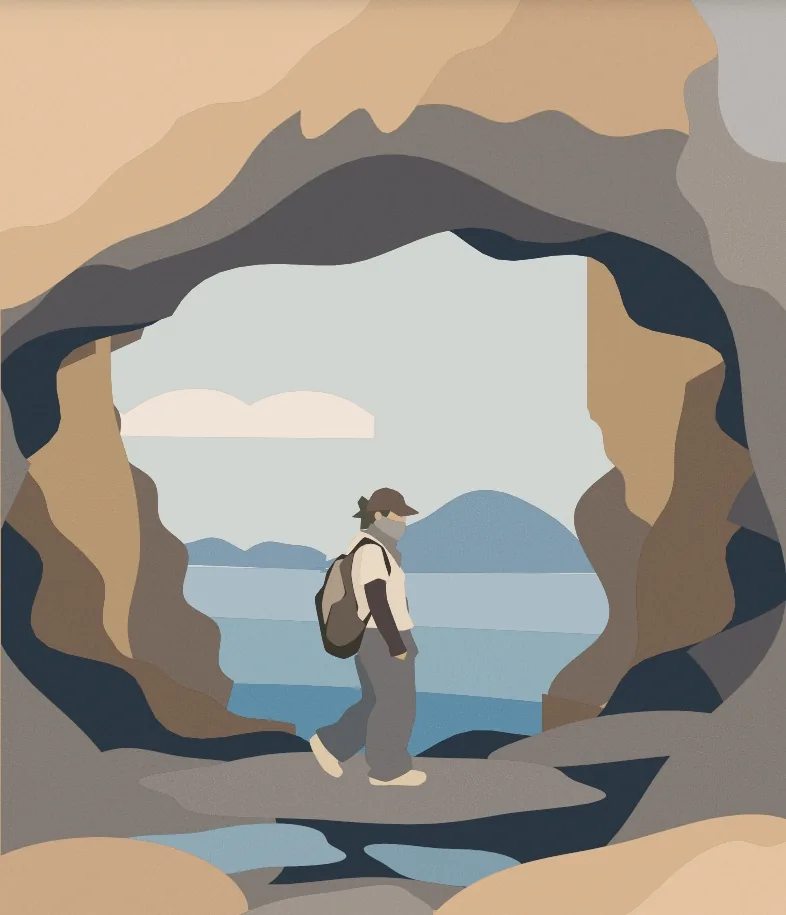
1. Turn the image into layers
Open the prepared artwork in the generator. Set the number of colors to the cardstock colors you plan to use. More colors give finer shading, use more paper and take longer to assemble. Color clustering suits most artwork. Tonal peaks suit art in three or more flat shades.
L01 is the deepest layer, at the back. Higher numbers sit closer to the front.
2. Check paper width and refine the SVG
Set the minimum paper width in the generator before moving to the editor. In the editor, inspect floating pieces, connect islands with bridges or turn them into decals, then adjust shapes, colors and layer order as needed.
- Thin strips. A strip narrower than the blade can follow will tear or lift. Return to the generator and raise the minimum paper width until the thin parts survive.
- Floating pieces. A shape sitting inside a hole with nothing touching it falls out when the sheet is cut. Connect it with a bridge, or make it a decal and glue it on afterwards.
You can also delete layers, adjust shapes and add your own designs in the KerfPress SVG editor.
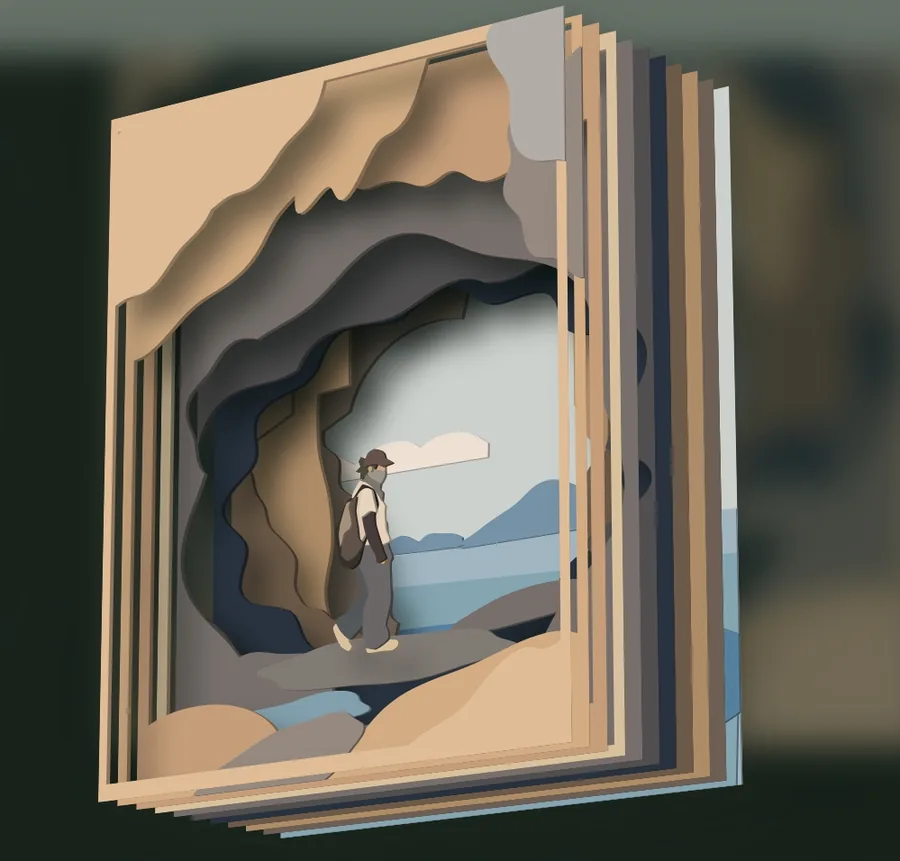
3. Check the stack in 3D
The preview shows the sheets spaced apart and lit from an angle, so you can see which cuts read as depth and which disappear. If you have changed the color of some layers in the editor and are not sure how it will look, the 3D view shows the result. Card stiffness and the gap between sheets decide how deep the shadows look. Previewing is free and does not use a download.
4. Cut
Download SVG.zip for a cutting machine, or PNG.zip to print and cut by hand. Both include an assembly guide and color list. When bridges or decals are present, the download also includes their location guides.
Blade pressure and speed depend on your machine, your blade and your card. Use the figures your machine's maker publishes for the weight you are cutting.
5. Assemble
Work from the highest layer number down. Lay each sheet flat onto the one below without dragging it. Trim a bridge once the piece it holds is glued in place. Keep the uncut border on every sheet. It is what holds the sheet together and what the frame grips.
Foam pads can go between the sheets. Their thickness sets the gap, which decides how deep the shadows read and how thick the finished stack is.
The finished piece
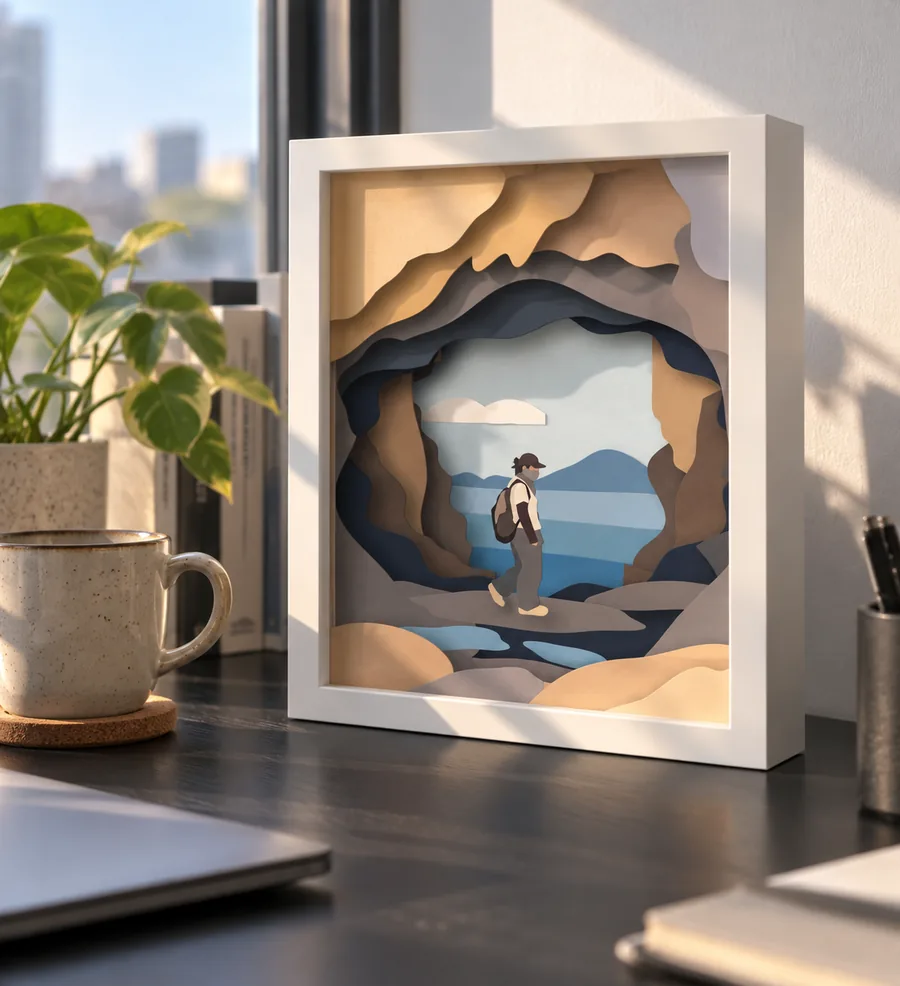
Want to try the process first? Start with a free template.