KerfPress

Turn any image
into a layered SVG
for shadow boxes.

Automatically separate a photo into paper layers for a shadow box and convert it to a multilayer SVG. Adjust every layer online, including its color, order, and details.

Generate from image

Already have an SVG file?

Edit SVG
Sheet 1 / 9 0 cuts made
Hover to rotate

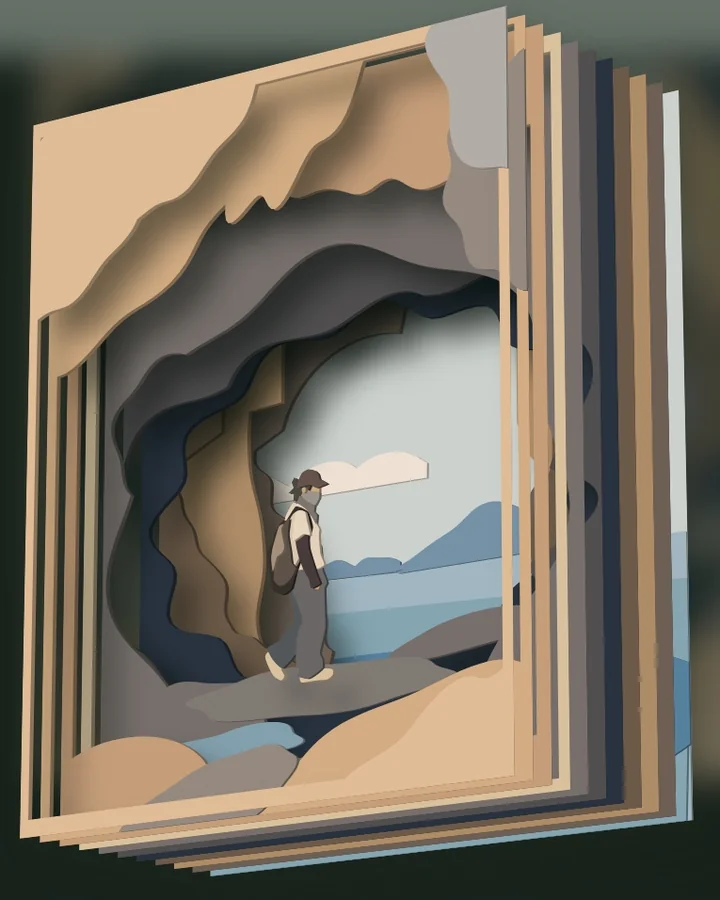
Preview it in 3D online
and freely change colors and shapes

Change the cardstock color of any layer to explore your own palette. You can also adjust cut positions by hand. Download only when the preview looks right.

Layered SVG files work with Cricut, Silhouette, Brother, Siser, and similar machines, as well as hand cutting.
From a sea cave to a shadow box

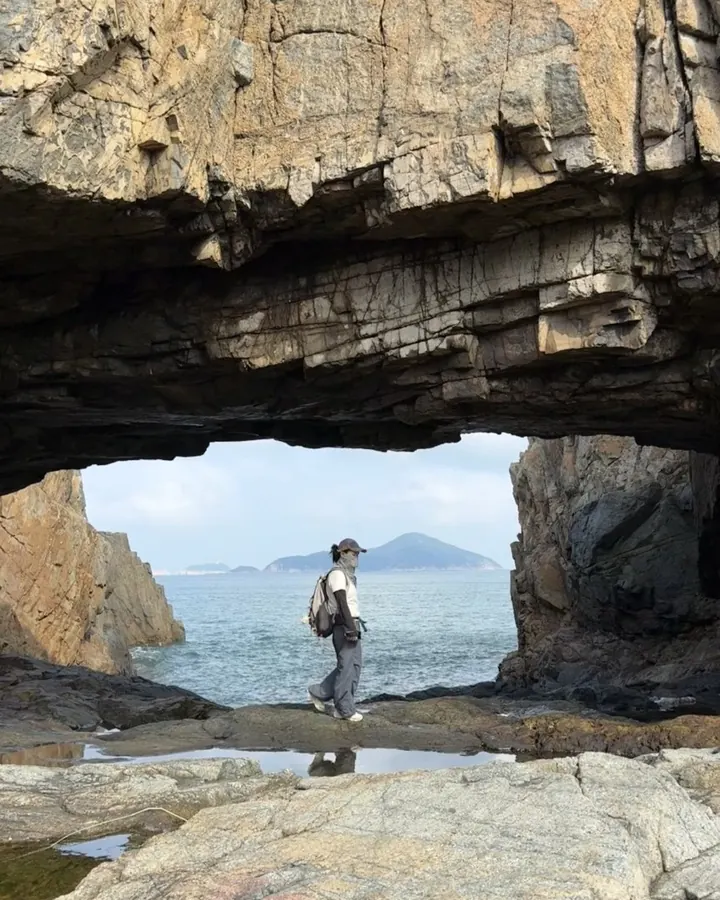
Original photo taken inside a sea cave
The original sea cave photo.
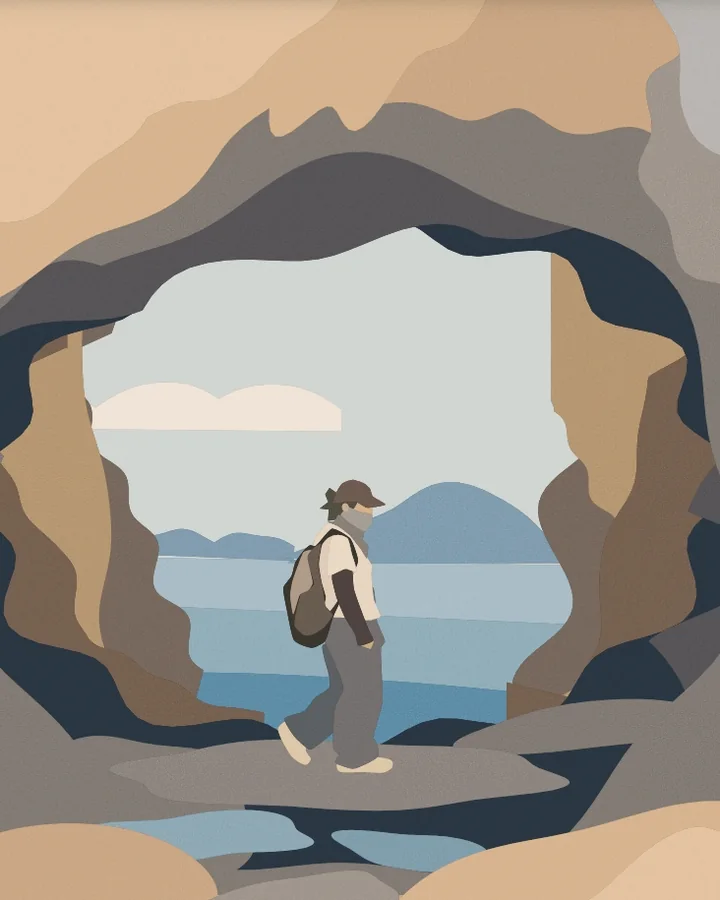
Sea cave scene simplified into flat color shapes
The scene simplified into flat color shapes.
Sea cave artwork separated into stacked paper layers
The artwork separated into stacked paper layers.
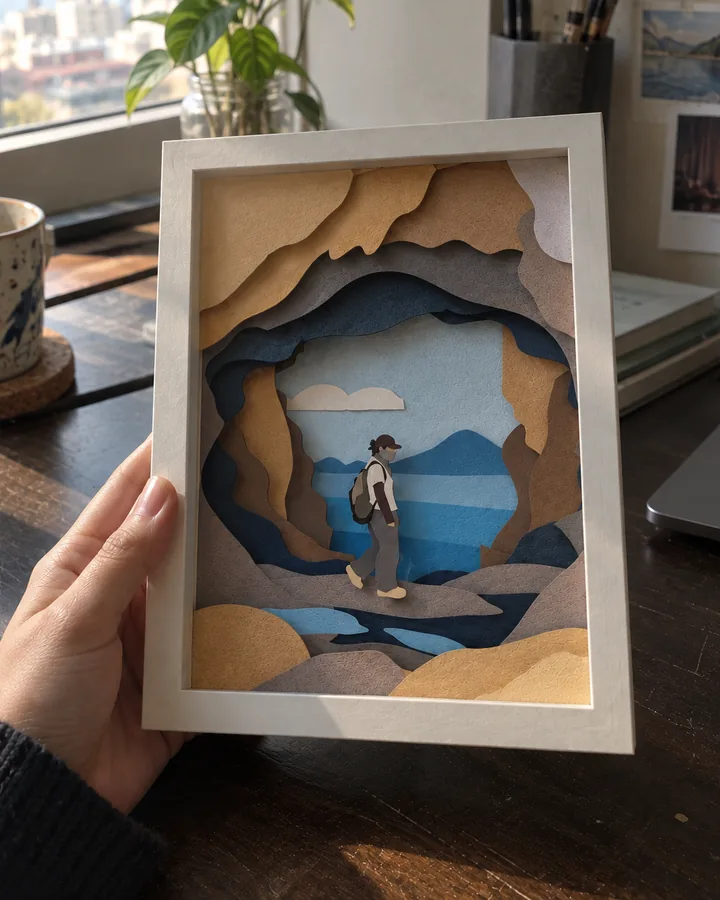
Finished sea cave papercut mounted in a shadow box
The finished papercut mounted in a shadow box.

Make your own instead of buying a generic file

Marketplace shadow box files are made for everyone, so they look like no one in particular. Start from a photo of your own cat, a place you have stood, or a day you want to keep, and turn it into layers that are yours.

Turn your image into layers

Keep editing
the SVG you generate

Open your own full project in the editor. Adjust paths, smoothing, size and layer order. Edit bridges, islands and separate decals in the free online SVG editor built for papercraft makers.

Already have a layered SVG?

Drop it into a free tool. It opens in your browser and is not uploaded.

All free tools

How it works

Go from one image to a cut-ready template in three steps.

01

Generate

Upload any image to generate a multilayer SVG. Control the result with settings such as width and minimum paper width, then download the layered SVG with assembly instructions.

02

Edit and export

Send a generated result to the online editor in one click, import a local multilayer SVG, or start a new file. Export a multilayer SVG or each layer separately.

03

Preview in 3D

Preview edited multilayer files or your own local multilayer files in 3D for free, so the SVG you cut matches what you see.

FAQ

How many downloads does a free account include?
A free account includes 1 SVG or PNG download, which can also go on an unmarked free template. We ask before it is used. Free templates with the small @kerfpress mark, generating projects and viewing 3D previews are unlimited. See Accounts and billing for the counting rules.
Will my images be uploaded to your servers?
Standard generation, editing and previewing all happen in your browser, and nothing is uploaded. AI generate is the one exception, and only runs when you click it: the image you chose is passed through our server to a vectorizing service and is not stored. See the Privacy Policy.
Should I choose PNG or SVG?
Choose SVG for cutting machines such as Cricut and Silhouette. Silhouette Studio's free Basic Edition can't open SVG files, so choose PNG there and trace it, or upgrade to Designer Edition for SVG. Choose PNG for print-then-cut, printing on cardstock, or tracing and cutting by hand.
Can I use it with my Cricut or Silhouette?
Yes. Download the SVG.zip and import the SVG into Cricut Design Space or Silhouette Studio. It includes one multilayer SVG and one SVG per sheet. Silhouette Studio opens SVG files in Designer Edition or above; on the free Basic Edition, use the PNG.zip instead.
Can I make a shadow box from my pet's photo?
Yes. A clear photo where your pet stands out from the background separates best. Generate it, adjust colors and layers in the editor, and check the 3D preview before you download.
What are islands and bridges, and how should I handle them?
An island is a piece required by the artwork that does not touch the surrounding paper. A bridge is a strip that connects it to the rest of the layer. You can cut without a bridge, but the piece may shift or get lost; you can also turn the island into a decal in the editor. The recommended method is to cut with a bridge, glue the island in place, then trim the bridge by hand.
KerfPress

Made to be re-cut.

Start now