Why the SVG looks finished but won’t frame
An AI vector tool draws the way a painter does. It lays down the sky, paints the hill over it, then the sun over that. Each shape is solid, and the ones on top hide the parts of the ones below. On screen you only ever see the top of the pile, so the file looks done.
Cut that file as it is and every shape becomes a loose piece of paper. That suits layers glued on top of each other, like stickers. A shadow box works the other way round: every layer is a full sheet the size of the frame, held at its edges, with holes cut where the layers behind should show.
The same file, before and after
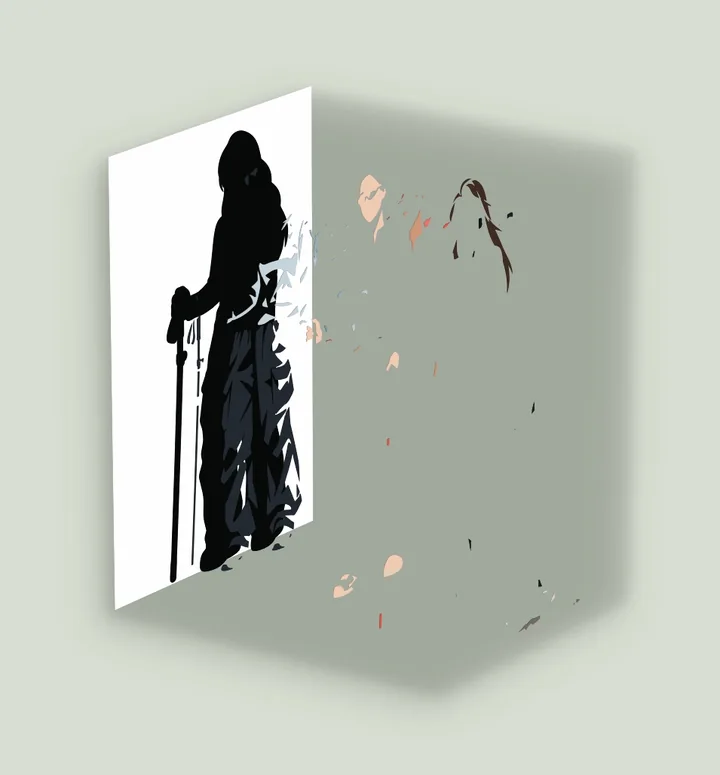
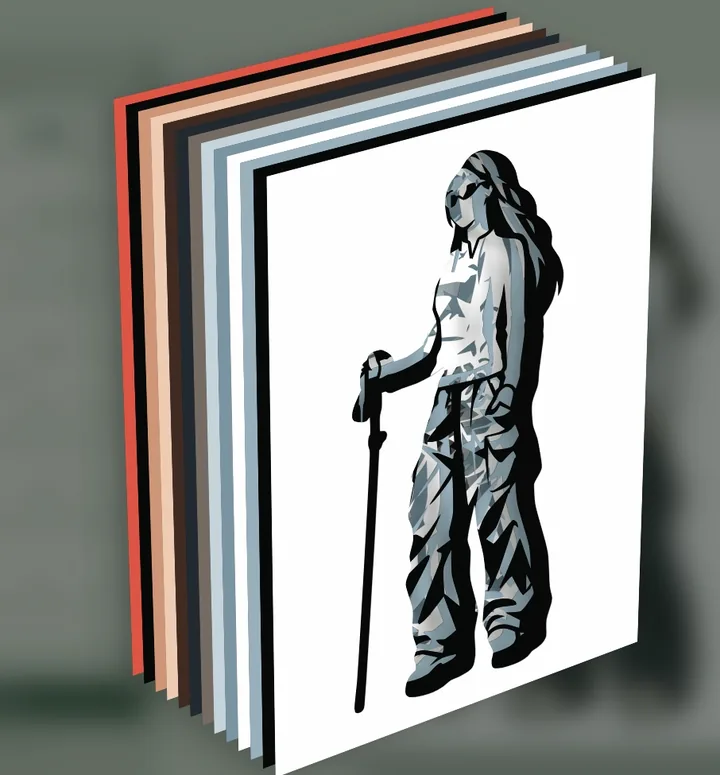
Getting from one to the other means working out, for every point of the design, which color shows and therefore which sheets need a hole there. Doing that by hand in a design program is slow, and it is easy to leave a piece with nothing holding it.
Three things to check in an AI-generated SVG
Some files are only outlines: thin lines with no color inside. They have no area to cut, so a tool can’t tell paper from holes. Open such a file in the editor and choose paper or holes for each layer yourself.
Some SVG files only wrap a picture. Open the file in a text editor: if it holds an image tag and almost no paths, it is a photo in disguise, and its colors have to be found the way they are for a photo.
AI tools often use several shades that look the same. In one file we tested there were 22 colors, four of them nearly the same black. Every color you keep is a sheet of cardstock, so merge the ones you can’t tell apart. A gradient can’t be cut either: it becomes one flat color.
How to turn it into a shadow box
1. Export the artwork as SVG
Download the SVG from your AI tool. If it offers both, choose SVG over PNG, so the colors stay exact.
2. Open it in the converter
Drop the file into the SVG to shadow box tool. It opens in the KerfPress generator in your browser and keeps the file’s own colors.
3. Choose how many sheets
Max colors starts at the file’s own count. Lower it to merge the closest colors when you want fewer sheets of cardstock.
4. Check the stack before cutting
Look at the sheets in 3D and check for thin strips and pieces that would fall out. Bridges are added automatically, and any layer can be adjusted in the editor.
5. Download and cut
Download the sheets as SVG for Cricut Design Space or Silhouette Studio, or as PNG, then cut each sheet and stack them back to front in the frame.
When to start from a picture instead
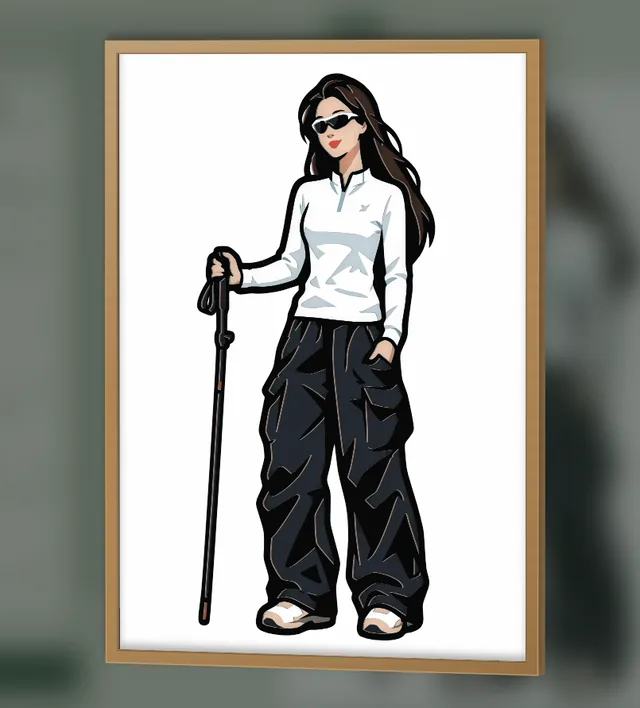
If your AI tool only gives you a PNG or JPG, the generator works from the picture too. It finds the colors by grouping similar pixels, which works well for flat artwork but can merge two close shades, such as dark brown hair next to a black outline. When an SVG is available, use it: its colors are exact.
More on getting a picture ready: How to turn a photo into a layered SVG. For pieces that fall out when cut, see islands and bridges, and for Cricut, how to use a layered SVG with Cricut.